The user can't burn any CDs by this trick. This restriction will disable the use of the inbuilt CD recording functions of Windows.
Open your registry and follow this path: HKEY_CURRENT_USER>Software>Microsoft>Windows>Current Version>Policies>Explorer and create this key: "NoCDBurning" and set its value to 1. Close you registry and logout/restart your system for the change to take the effect.
Create A Hidden User Account This tweak allows an account that is normally displayed on the Welcome screen to be hidden from view. To log on using the account it's necessary to use the Log On To Windows dialog box similar to the one in Windows 2000. #[Start] [Run] [Regedit]#Registry Key:
HKEY_LOCAL_MACHINE\SOFTWARE\Microsoft\WindowsNT\CurrentVersion\Winlogon\SpecialAccounts\UserList#Modify/Create the Value Data Type(s) and Value Name(s) as detailed below.#Data Type: REG_DWORD [Dword Value] // Value Name: Type Name of Account to be Hidden#Setting for Value Data: [0 = Account is Hidden / 1 = Enabled]#Exit Registry and Reboot...
While the account is hidden on the Welcome screen, note that the account profile will be visible in C:\Documents and Settings or wherever user profiles are stored as well as in Local Users and Groups
My Exclusive... Again a contribution to Computer Tricks ! Play pranks on your friends...
**************************************************************************** Shutdown Trick Stimulate shutdown from command prompt ! # Start >> Run # Type shutdown -s -t 10 -c "Shutting Down..." # Hit Enter and enjoy ! **************************************************************************** Restart TrickStimulate Restart from command prompt ! # Start >> Run # Type shutdown -r -t 10 -c "Restarting..." # Hit Enter and enjoy ! **************************************************************************** Log Off TrickStimulate LogOff from command prompt ! # Start >> Run # Type shutdown -l # Hit Enter and enjoy ! **************************************************************************** Please Note -s :: This signify Shutdown Request. -r :: This signify Restart Request. -l :: This signify LogOff Request. -t :: This signify the timer before Restart. (Replace '10' with any number.) -c :: This signify comment.
How To Stop It ?# When the timer is Running... # Start >> Run # Type shutdown -a # That's It.
These days Broadband connections are very common...
As a result we are always connected... this annoys the ISP's !
Recently, I made some changes in my internet connection and faced the following problem and came out with a solution...
***** Problem ***** ISPs(Internet Service Providers) automatically disconnects the connection after some time in case of absolute inactivity. This reduces the load on their servers. But... This is irritating for the user, as he has to login every now and then...
Now, Imagine you are reading an article and after 10 mins.. as you turn to next page...? It asks you to Login..??? Now... that's crazy... isn't it ?
***** Solution ***** I coded an application that keeps the connection alive ! Basically it maintains little activity and prevents it from logging out. This is tested to be safe.. so no worries.
------------------------------------------------------------- Application : Keep_Alive Size : 40 KB It uses : 128 bytes every 5 min. (i.e. 36KB in 1 day) Link : Download Here -------------------------------------------------------------
***** How To Use ***** > Double-Click the application(Keep_Alive) > The Application runs in hidden mode, i.e. it will disappear and run in background > You are done.. Now your connection will remain alive, forget about it.
۩ On Restart the you again have to start the Application!!!
--------------------------------------------
So... Add it to your Start Up ------------------------------------------------------------- Adding to StartUp... ------------------------------------------------------------- ** Go to Start > All Programs ** Right Click on Startup > open ** In Startup paste the application (Keep_Alive) ** This will start the Application every time you start your computer
Mission Accomplished...! Now you will not get logged out automatically as the application will maintain some activity.
If you want to remove it... ** Just Delete it from the Startup Folder & Restart. ** To close it without Restart.. (ctrl + shift + esc) > Processes >Keep_Alive > End Process.
So you’ve got a great Android phone app on Google Play, your users love it, and you’re kicking back and watching the download numbers soar. Congrats! But like any enterprising developer, you may be thinking, “how do I take my app’s success even further?” The answer: an equally awesome experience on tablets. Users love their tablet apps! For example, Mint.com found that the larger screen real estate allowed tablet users to engage with their budget data 7x more than on phones. And TinyCo found that on average, paying users spent 35% more on tablets than on handsets. So now is the right time to think about how your app translates onto these larger screen devices that are designed to meet users’ more generic, everyday computing needs.
In this post, we’ll recap some of the resources available for crafting a great tablet experience for your users. These resources are useful for everyone in the app development pipeline—from product managers, to designers, to developers, and QA engineers.
Android Design Guidelines
No conversation about Android app design or development should go very far without first consulting the Android Designguidelines. While most of the sections are relevant to all Android devices, certain sections stand out as particularly relevant to design on tablets.
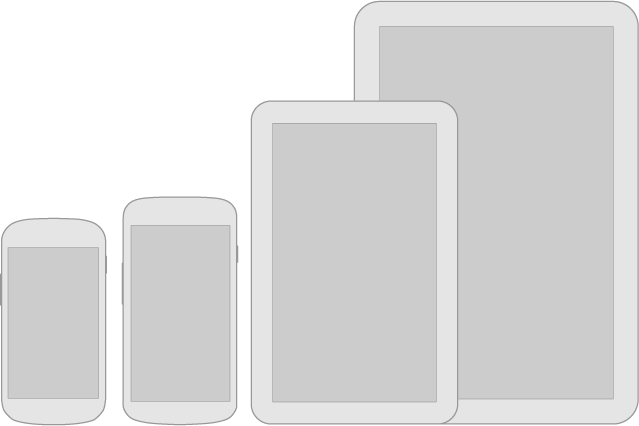
The Devices and Displays page introduces the concept of density-independence. For example, although the Nexus 4, Nexus 7, and Motorola XOOM all have a similar pixel resolution (1280x768, 1280x800, and 1280x800 respectively), they have vastly different screens. Instead of thinking in pixels, think in dips (density-independent pixels)—that way, it’s much easier to conceptualize the difference between Nexus 4 (640x384 dp), Nexus 7 (960x600dp), and Nexus 10 or the Motorola XOOM (1280x800 dp).
Following the 48dp rhythm discussed in Metrics and Grids helps take some of the guesswork out of sizing elements, especially for tablets. When in doubt, use multiples of 48dp (or 16dp for a finer grid) for sizing elements horizontally and vertically. For example, when showing sparse content on larger screens, consider using generous side margins of 96dp or 144dp. Or when deciding how wide your master pane should be in a master/detail layout for 10” tablets, see how your master content looks and feels with a width of 240dp or 288dp.
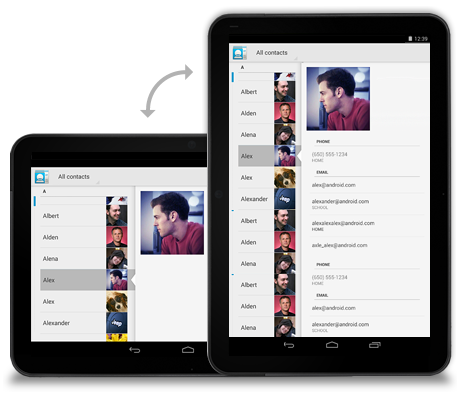
The Multi-pane Layouts guide discusses use cases and examples for combining related views into a single screen to simultaneously improve app navigation and make optimal use of the available screen real estate. It also discusses strategies for laying out content across both portrait and landscape, all while maintaining functional parity across orientations. Since users enjoy using tablets in both portrait and landscape orientations, it’s even more important to react properly to orientation changes than with phones.
Lastly, the Downloadable Stencils offer designers a great starting point for high-fidelity mockups, complete with reference device outlines, correctly sized action bars, and more.
Android Training for Developers
The Training section of the developer site offers task-oriented technical training material, complete with flow diagrams, code snippets, sample projects and more. Several of these ‘classes’ are geared toward helping developers understand how to scale your apps across any screen size.
The Designing Effective Navigation class—aimed more at the initial design phase of the app creation process—offers a methodology for effectively planning and grouping screens on tablets, and even shows example wireframes for a simple news reader application following this methodology.
Lastly, while not precisely a training class, the Supporting Tablets and Handsets document offers even more information about some of these key best practices. And if you’re the type of developer that would prefer to skip the text and jump right into the code, you can even add a Master/Detail flow, complete with handset and tablet support, to your app with just a few clicks using the Android Developer Tools for Eclipse.
Android Design in Action Highlights
Each week, a few of us on the developer relations team get together on the Android Design in Action live show to discuss Android design best practices, as well as provide original ‘redesign’ mockups to help demonstrate our vision of how Android apps should look and feel.
A recent episode focused on the topic of responsive design, or designing flexible apps that can adapt to whatever screen size or form factor they’re run on:
In the episode, we celebrated successful examples of responsive design on Android, ranging from creating calendar events inGoogle Calendar, to browsing wallpapers and stories in Pattrn and Pocket, to playing video in TED, and finally to managing your conference schedule in the open-sourceGoogle I/O 2012 app.
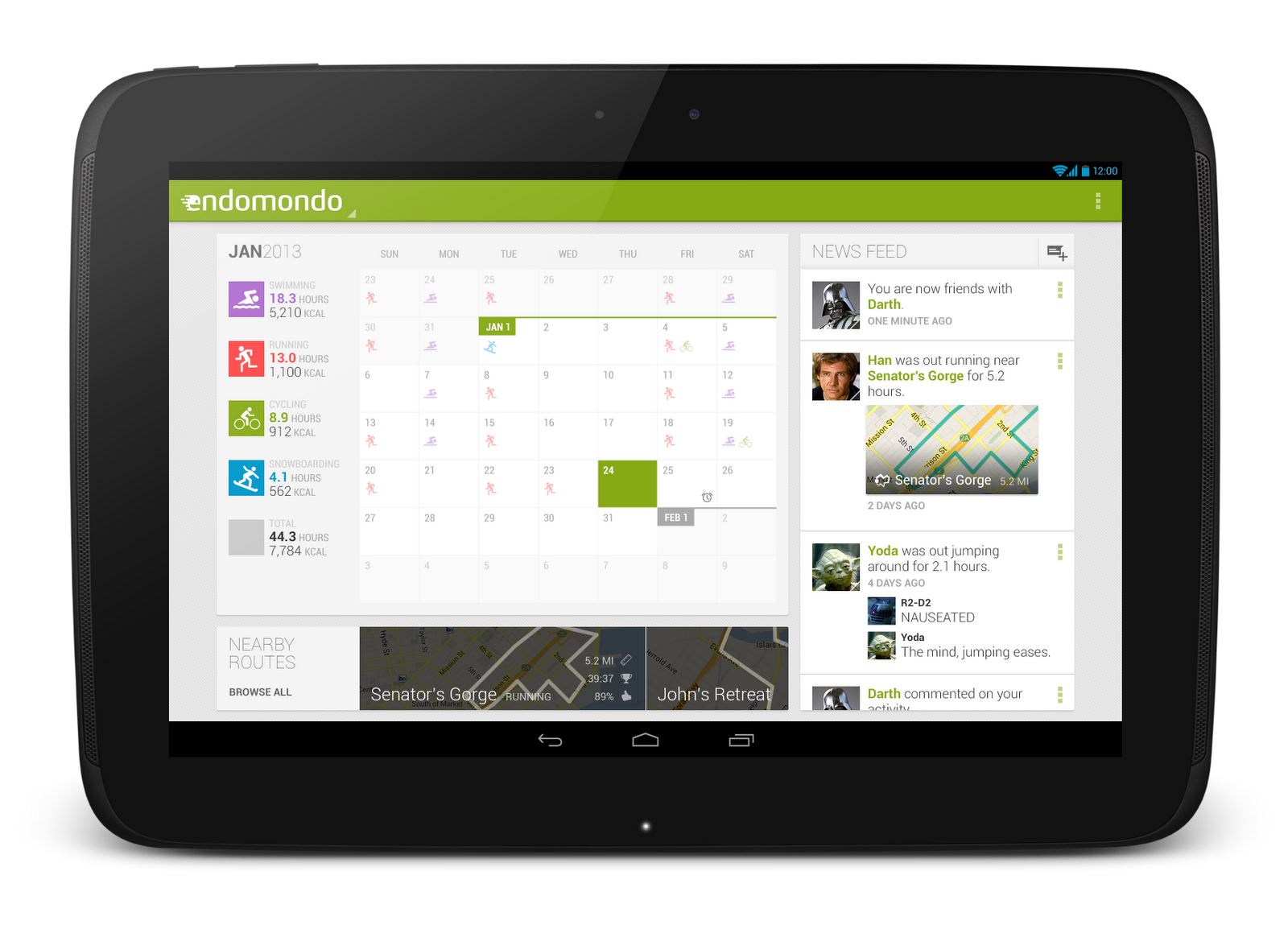
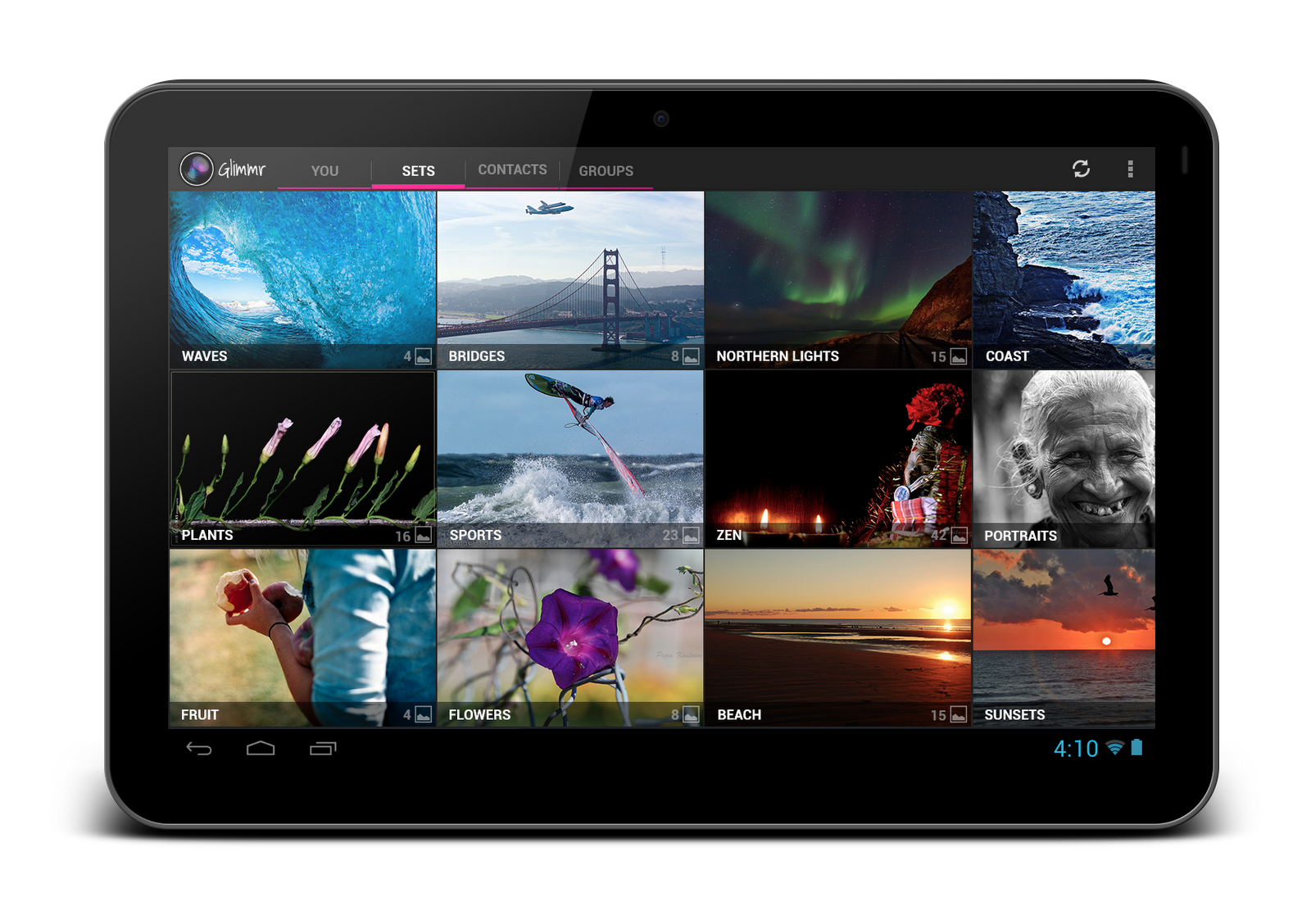
We also regularly feature tablet design concepts on the show (some are shown below), so we highly recommend tuning in each week for design ideas.
Over in the “Distribute” section of developer.android.com, the recently published Tablet App Quality checklist is a great way to check if your app is tablet-ready along a variety of technical dimensions. You should make sure that everyone involved in your mobile products is aware of the standards defined in this checklist, as it is one of the ways in which the Google Play team selects apps to feature in the Staff Picks for Tablets collection.
So What are You Waiting For?
2013 is almost here, and it’s looking to be another exciting year for Android tablets. Make sure your app is positioned to succeed in the evolving device landscape by following some of the best practices and examples discussed here and on the rest of developer.android.com.