Showing posts with label Mobile Tricks. Show all posts

Sunday, December 16, 2012

Non-Market Apps on Android Phone Installation Guide

Non-Market Apps on Android Phone Installation Guide


If you own an Android Dev phone, at some point you'd probably want to create and try your own apps (or apps from your friends).

To ensure that you do not break your phone by installing malicious apps, Android has a couple of safety features built in. So you need to specifically instruct android to be able to install unsigned / non-market apps.

Menu > Settings > Applications > Unknown Sources

Check "Unknown Sources" to allow install of non-Market applications. While developing, you most likely also want to enable "Stay awake" in Menu > Settings > Applications > Developmentso that your screen does not go to sleep every often.

Now you can install any app (including malicious ones) the usual way either by browsing to the app using the browser or using adb install command.


Saturday, December 15, 2012

Alerts on your Android Based On Location


Alerts on your Android Based On Location


Setting location based reminders is very  simple in android. The app is integrated with Google Maps and you can just tap a location on the map to set a reminder when you are around that place.
You can  create one-time alerts or  configure it to repeat on particular days


How do you locate your mobile phone if the ringer is off? Maybe you switched the phone to vibrate mode while you were in a meeting and now you dont find it .
Wouldn’t it be nice if you could use other  phone  to turn on the ringer of your missing phone?
Here is an app for it
Agastya, a new Android app that lets you “remotely” perform various tasks on your phone from any other phone via simple SMS commands. The other phone, that is sending the commands, need not be running Android – even the basic Nokia phone would do
Alerts on your Android Based On Location


The workflow is very  easy. You send an SMS command from a friend’s phone to your own phone in a given format and the app reacts accordingly.
For example, a command like “ringer” would turn on the ringer while “silent” would put the phone to silent mode.
The best feature of this app is it  helps you retrieve your missed calls list or your incoming text messages via, you got it right, SMS.
Here’s a complete list of SMS commands that you can try on your Android phone:
  • SILENT – Turn off the phone’s ringer
  • RINGER – Turn on the ringer
  • IMEI – Get the IMEI number* of your phone
  • LAST MESSAGES – Retrieve the last 5 text messages received on your phone
  • LAST CALLS – Know the last 5 missed/received/dialed numbers
  • <CONTACT> – Fetch the contact number of a person from the address book.

Agastay isn’t the first app that offers such features.
The more popular Where’s My Droid app can not only turn on the ringer of your phone remotely but will also send you the phone’s current GPS location by SMS. There’s overlap but these apps are more inclined towards locating your lost phone while Agastay is like a command console – you can toggle between phone states or even fetch details of a contact remotely from the phone’s address book. The IMEI feature is also handy for blacklisting your misplaced phone

Saturday, December 8, 2012

Latest Google Maps Android API now part of Google Play services

Latest Google Maps Android API now part of Google Play services


Google Play services is our new platform that offers you better integration with Google products, and which provides greater agility for quickly rolling out new capabilities for you to use within your apps. Today we’re launching Google Play services v2.0, which includes two new APIs, including perhaps our most frequently requested upgrade: Maps.

Google Maps Android API


The new version of the API allows developers to bring many of the recent features of Google Maps for Android to your Android apps. We’re excited to make this API available as part of Google Play services supporting devices from Froyo onwards (API level 8+).

The new API uses vector-based maps that support 2D and 3D views, and allow users to tilt and rotate the map with simple gestures. Along with the layers you’ve come to know from Google Maps such as satellite, hybrid, terrain and traffic, the new API lets you include indoor maps for many major airports and shopping centers in your app.

One of most common feature requests we’ve heard on Android is support for Map Fragments. With this new API, adding a map to your Activity is as simple as:

<fragment
  android:id="@+id/map"
  android:layout_width="match_parent"
  android:layout_height="match_parent"
  class="com.google.android.gms.maps.MapFragment" />

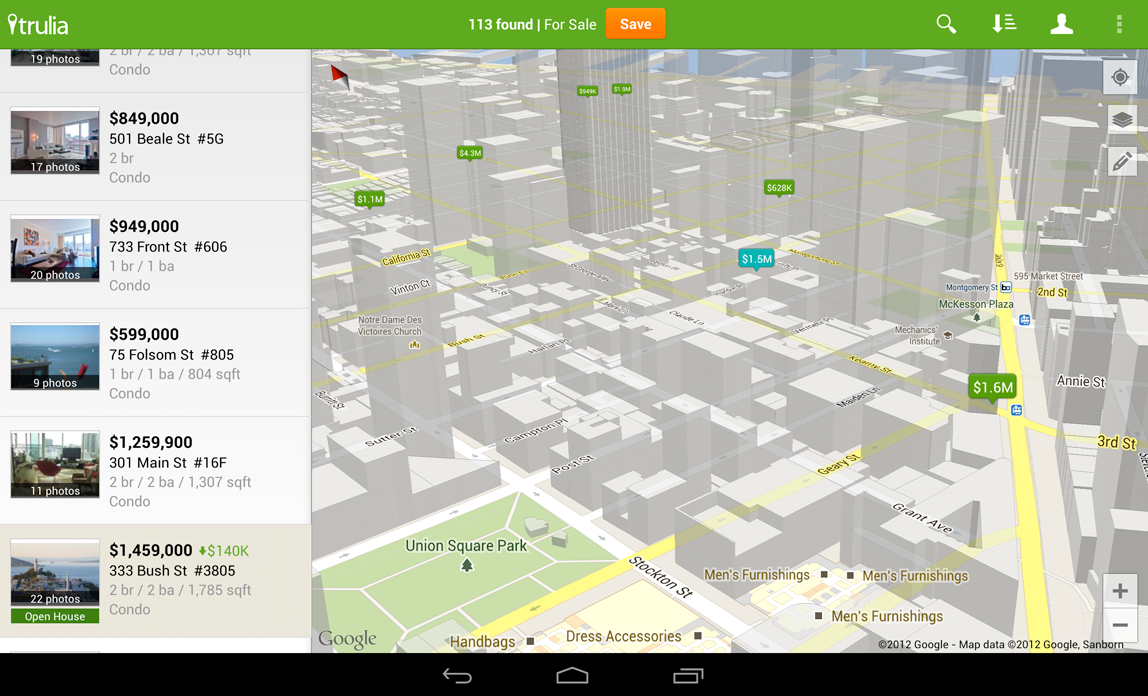
Check out this image from updated Trulia Android app (which goes live tomorrow), that users can use to search for a place to buy or rent in 3D.


The new API is simpler to use, so that creating markers and info windows is easy. Polylines, Polygons, Ground Overlays and Tile Overlays can all now be added to the map with just a few lines of code.

To get started follow the getting started instructions to obtain an API Key. Then download and configure the Google Play services SDK using the SDK Manager. Check the Google Maps for Android API documentation for more details. If you haven't got it already, you'll need to download the Android SDK first.

More than 800,000 sites around the world already use our mapping APIs to create amazing and useful apps. We hope you enjoy using this new addition to the Google Maps API family, and building mapping experiences that were never before possible on a mobile device. 

Photo Sphere


In Android 4.2, we introduced Photo Sphere mode in the Camera, which you can use to create amazing, immersive panoramas just like you see in Street View on Google Maps. Today we’re excited to announce new APIs and documentation that empower developers, businesses, and photographers to explore new uses of Photo Sphere for work and for play.

We’ve made Photo Sphere an open format so anyone can create and view them on the web or on mobile devices. 

A Photo sphere is simply an image file (like a JPG) that has in it text-based metadata, an open format created by Adobe called XMP. The metadata describes the Photo Sphere’s dimensions and how it should be rendered within the interactive Photo Sphere viewer you see in Android, Google+, and Google Maps.

If you’d like to programmatically or manually add the XMP metadata into panoramic images not created by the Photo Sphere camera in Android, stay tuned today for more details on the metadata and how to apply it to your photos programmatically later.

In the new Google Play services, we’ve added APIs to give you the ability to check whether an image is a Photo Sphere and then open it up in the Photo Sphere viewer.

// This listener will be called with information about the given panorama.
OnPanoramaInfoLoadedListener infoLoadedListener =
  new OnPanoramaInfoLoadedListener() {
    @Override
    public void onPanoramaInfoLoaded(ConnectionResult result,
                                     Intent viewerIntent) {
        if (result.isSuccess()) {
            // If the intent is not null, the image can be shown as a
            // panorama.
            if (viewerIntent != null) {
                // Use the given intent to start the panorama viewer.
                startActivity(viewerIntent);
            }
        }
        
        // If viewerIntent is null, the image is not a viewable panorama.
    }
};
// Create client instance and connect to it.
PanoramaClient client = ...
...
// Once connected to the client, initiate the asynchronous check on whether
// the image is a viewable panorama.
client.loadPanoramaInfo(infoLoadedListener, panoramaUri);
To learn more about Google Play services and the APIs available to you through it, visit the new Google Services area of the Android Developers site.


Android Mobile Quick Shortcut Buttons

Android Mobile Quick Shortcut Buttons


The following are the ADP1 / G1 button combinations for booting in various modes.
Regular mode: Power button
Fastboot mode: Power on with Camera + Power button. Wait until Android on skateboard image appears with text "SERIAL0", and press Back button. It'll enter FASTBOOT mode.
Alternatively, Power + Back button takes you directly to fastboot mode
Recovery mode: Power on with Home + Power button.
In recovery mode,
Alt + L - toggle log text display
Alt + s - apply sdcard:update.zip
Alt + W - wipe data/factory reset
Safe mode: Power + Menu button
The 3-button salute (Call + Menu + Hangup) causes a reboot in any of the above modes.


Flashing the Android Mobiles


So far it was not super easy to flash your ADP1 to factory settings if you manage to corrupt something or break the OS. People have used hacky ways and images but no official ADP1 build was available.

This has changed now. The OS images along with flashing instructions for restoring your android dev phone to factory image is available here.


Powered by Blogger