Showing posts with label Email. Show all posts

Tuesday, January 19, 2010

Use your own domain with hotmail


Wanted to use hotmail service to host your own domain emails? Go to http://domains.live.com and signup with your domain. You would need to be able to make change in the MX entry of your domain DNS. You would get 25 mail boxes on each domain. email accounts created in this way will automatically become a msn passport.
Note : – msn wont be handeling your dns/web hosting.


Tuesday, December 15, 2009

How to find the IP address of the email sender in Yahoo! Mail

Guide to tracking of emails to find sender's IP address using email headers.

In this tutorial i shall be writing about the trick to get the IP Address of sender in Yahoo Mail. This is useful if someone is spamming your inbox with junk mail or any other reason you may have to find the location of the email sender.

How to find the IP address of the email sender in Yahoo! Mail
Note: You won't be able to find the real IP address if the sender uses an anonymous proxy server.

Here is a step by step guide to get the IP address of an email sender in Yahoo! Mail:

1. Log into your Yahoo! mail with your username and password.
2. Click on Inbox or any folder where you have stored your mail.
3. Open the mail
4. At the bottom right region of the email, you'll see there is a drop-down option "Full Headers". If you can't find it press Ctrl+F and search for "header".

How to find the IP address of the email sender in Yahoo! MailHow to find the IP address of the email sender in Yahoo! Mail
5. Click on it and look for Received: from followed by the IP address between square brackets [ ].

How to find the IP address of the email sender in Yahoo! Mail
6. That should most likely be the IP address of the sender. If there are many instances of Received: from with the IP address, select the IP address in the last pattern. If there are no instances of Received: from with the IP address, select the first IP address in X-Originating-IP.

Now, you can find the exact location of the sender by using GeoBytes IP Locator or IP2Location.

Monday, November 9, 2009

Gmail now supports Google Voice Messages Playback

Gmail now supports Google Voice Messages Playback

Gmail has added a new feature in Labs that is the Google Voice Player through which you can listen to your voice mails directly inside gmail. Earlier, when you clicked “play message”, it opened a new page to play the message, but now it’ll play on the same page.

To enable this feature, Go to Labs link in Gmail and look for “Google Voice Plyer” and click the “enable” radio button and save the changes. Now, whenever anyone sends you a voicemail, you’ll recieve a message in Gmail and you can play it directly inside the gmail. If you are voicemail user, then you should turn this feature on as it can be very useful to you.

Monday, September 7, 2009

Delete mobile number from yahoo messenger

Delete mobile number from yahoo messenger
Click the Messenger menu and select Preferences.

Click the "General" category.

Click the "Edit mobile device" button and enter your Yahoo! ID and password to sign in to Yahoo! Mobile.

Under the Other Mobile Devices section, click the trashcan i.e., delete icon to the right of the device.

Click Delete.

Note: To change your Go Mobile device, you must first delete your original device and then register your new device.

Tuesday, July 14, 2009

Gmail - How to add contact in group

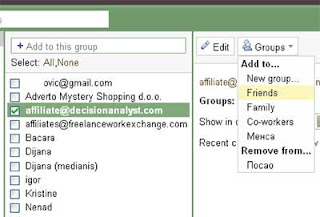
You need to add some email adress (contact) in your Gmail group (eg friends). And that contact is only in suggested contacts and you don't see Group menu on right side in Gmail. You need first add that suggested contact to My contacts or into Most contacted. Go to Suggested contacts, check particular check-box infront that e-mail adress and click Move to my contacts on right. Now, go to My contacts, check box by adress, click Groups menu right, and Add to group you want.

Gmail group contact

Monday, July 13, 2009

How to email a group of contacts in Gmail

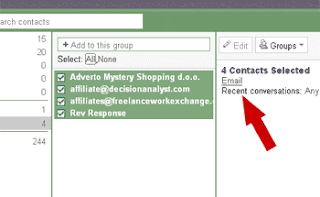
Another interesting and useful Gmail option is possibility to email a group of contacts . And that you can do on this way. Go to "Contacts". Than click on Group you would like to e-mail. On "Select" click "All". Or select just contacts you want to email. When contacts are selected, on right side just click "Email". Gmail will automatically redirect you to new message with field "To" filled. That's if you would like to everyone who receive this message see who else you mailed message. If you don't want that, copy addresses from "To" field to "Bcc" field and after that, leave just one address in "To". Than you can write Subject and message body and send it.

How to email a group of contacts  in Gmail

Sunday, June 28, 2009

Recover MSN Messenger and Hotmail Password With Password Recovery Software


Forgot you MSN and Hotmail password? Where to find Hotmail password recovery software and manager? Being a very secretive person, I have the habit of changing my password every few months; at times I forgot what my password was and stumbled upon this wonderful password recovery software.
MSN Messenger Password Recovery enables you to recover your lost email password and MSN password. This MSN and Hotmail email password recovery software only works if the “Remember my Password” tickbox is checked by default in MSN messenger, meaning to say you are able to login to MSN every time automatically without entering your password. This password recovery software will not work if the tickbox is not checked.

Password Recovery for MSN is the MSN messenger password recovery program that finds all encrypted MSN Messenger, Windows Live Messenger and Windows Messenger passwords stored on the local system. It then displays them in an easy to read format. This program works if after clicking the “Sign-In” button in your messenger you’re able to login automatically without entering your MSN password. So why not download the MSN password recovery program and try it for free
Note: Beware that stealing MSN passwords is illegal. You can only recover your own passwords. Doing it to other people even if they’re your friends or neighbors will likely get you in jail!

Wednesday, April 1, 2009

Login with Multiple ID at the Same Time


This trick works when you want to login with multiple ID of orkut, gmail or yahoo.

Step 1:

Open system properties(by right clicking my computer), choose tab advanced, click to environment variables button. in system variables section, click new. type this information to each textbox.

variable name: moz_no_remote(should be all small letter)

variable value: 1

press ok to close all windows.

Step 2:
Open firefox icon's properties(from desktop and quick launch). add extension -p to command line(like "c:\program files\mozilla firefox\firefox.exe" -p). press ok.


While starting firefox u have to create two separate profiles of firefox so that u can login to two accounts of any(orkut,yahoo,rediff or anything else).......for three logins create three profiles of firefox.........

Self distructing Email

Every time that you send an email, copies are stored permanently on multiple email
servers as well as the recipient's inbox and anyone they decide to send it to. Your emails can be stored and scanned in more places than you can imagine. Do you want people storing your email messages forever? Do you want something that you type today to be used against you tomorrow, next week, next month or even in the next decade?
Until now, everyone else has had control of the email that you have sent. BigString gives you back control of your email, acting like an automatic shredder for your email. You can self-destruct or change an email that's already been sent or read. Don't leave your messages sitting in peoples' inboxes forever. Get a free BigString email account to protect your privacy.


BigString takes the risk out of email

Now, with BigString, you can finally take the risk out of email and put an end to "sender regret." It is the world's first & only email service that thoroughly protects your safety and privacy.


BigString's exclusive, patent-pending technology enables you to prevent your personal or business information from lingering indefinitely in someone else's inbox. It also restricts private pictures or messages from being indiscriminately spread throughout cyberspace! Now your sensitive photos can't be posted to unseemly web sites or printed for circulation amongst total strangers.

BigString lets you have second thoughts
BigString shifts the control from the recipient to YOU the sender. BigString grants the luxury of second thoughts, the power to limit message viewings, and the choice to delay email transmission.


You can reword a message fired off in anger or haste or completely delete it! You can recall a botched résumé for revision or erase a tasteless joke. You can make a work of art or photograph print-proof. You can prevent a love letter from being forwarded. You can set an expiration date on an emailed price quote or business offer or you can simply pull back an email to eliminate typos.


BigString takes the danger out of clicking
BigString guarantees that clicking "send" will never again be an irreversible disaster. Now YOU decide the fate of your emails. You decide where they end up, who sees them and for how long. BigString emails can be destroyed, recalled or changed even after they've been opened! The freedom is yours, the options are yours, and you're the boss with BigString.


BigString is easy to use
BigString is as easy to use as any other email and there's nothing to download! Don't be resigned to the mercy of your recipient. You don't want your every action to be carved in stone because sometimes you just NEED to take it back!

Here are just a few of the many applications of BigString
Erasable, Recallable, Non-Printable Email.

Executives: Protect your business and safeguard your email. Now you never have to worry about sending the wrong attachment or completely forgetting it. Misspelled words, incorrect dates, or other typos can all be fixed even after your message has been sent. You can even "pull an email back" to delete expired price quotes, old business offers or dated legal material. BigString is your email insurance.


On-Line Daters: You don't want your personal information like pictures, phone numbers or intimate notes, circulated around the Internet! BigString prevents your pictures and messages from being printed or forwarded. You can set an expiration date for an email or self-destruct it at will. You can choose the number of times you'll allow a picture to be viewed before it disappears. BigString protects your privacy!


Artists and Photographers: Now with BigString you can confidently email proofs and samples without the slightest fear that they will be printed or saved for later use without your authorization. Use BigString to make your image non-savable and non-printable! Limit the number of times a client can view a piece before you have it self-destruct. You can even recall a sent email to delete an old price quote or alter a new one. You can also prevent it from being forwarded to other customers. BigString protects your rights of ownership!


Copywriters: Spelling or punctuation errors that can cost time, money, or embarrassment are now a thing of the past. With BigString, clicking "send" is no longer an action "carved in stone." Accidentally arranging paragraphs in the wrong order will no longer mean a lost account. With the technology of BigString you can recall that mistake-ridden copy and correct the errors even after your email has left the outbox. You can self-destruct what you sent all together and replace it with a fully revised version. Only you will know this switch has occurred! With BigString you can confidently send non-printable, non-savable sample copy. You no longer have to worry that it will be used without your knowledge. You're the boss with BigString.

All the features of Regular Email plus:
Self-Destructing Email
Recallable/Erasable Email
Non-Forwardable Email
Non-Printable/Savable Email
Advanced Email Tracking
Masquerading
All the storage you need
Secure Email
Video Email
Large Attachment Capacity
Automatic Message Highlighting
Advanced Spam and Virus Filtering
Advanced Message Sorting
Fun Email Effects

Sunday, January 25, 2009

GMail Drive : Store Your Files In Gmail

nHow much of your 6 GB (and growing) Gmail mailboxx are you really using? Gmail Drive is a simple Windows shell extension that lets you sue your Gmail inbox as online storage. You simply give it your Gmail username and password and you'll find another hard drive listed under My Computer. When you upload a file, it appears as a new e-mail in your inbox. To aviod the hassle of seeing a new e-mail every ime you upload a file, you can create a filter in Gmail that archives all such mail (the subject line contains "GMAILFS").It may not be the most extensive tool ever made, but Gmail Drive is the best way to use all that free space that Google has so generously given us all.


Download GMail Drive

Thursday, December 25, 2008

Change the GMail notifier check interval

Change the GMail notifier check interval
The GMail notifier app for the Mac no longer has a preference to let you set how often the notifier checks for new mail. Previous version of the GMail Notifier allowed you to set whatever interval you wanted.

But there is a trick that lets you set the interval that it uses to check for new Mail. Click on the GMail notifier icon in the menu bar. Then hold down *both* the Command *and* Option keys and while doing this click on the "Preferences..." option in the menu. When you do this, it'll pop up a little window like so:


Change the GMail notifier check interval


GMail Notifier preferences setting dialog

Click into the box and add this as the key:
AutocheckInterval

Then add the value as the number of minutes you want to use as an interval for checking for new mail. Hit the "Set" button when you are done. You may need to restart GMail Notifier for the change to take effect.

Additional GMail addresses

Additional GMail addresses
There are several tricks out there that allow you to increase the number of unique email addresses available with your GMail email account.
Here's another.
In addition to your address at the gmail.com domain, you can also use the googlemail.com domain. So if your Gmail address is myname@gmail.com you can also use myname@googlemail.com and the mail will end up in your GMail inbox.
You can also look at mail details and set up filters based on this address.
So you can use this additional domain and treat those emails differently if you want.

 
Powered by Blogger